Windows computers have many settings to be more power efficient, but some of these may cause issues with USB devices going to 'sleep' if windows does not think they are being used. This can include USB COM Ports whichc an cause calibrators to stop working if certain power settings are in place.
To disable USB Selective Suspend, see below
1. Click Start

2. Type in control panel and press [[Return]]
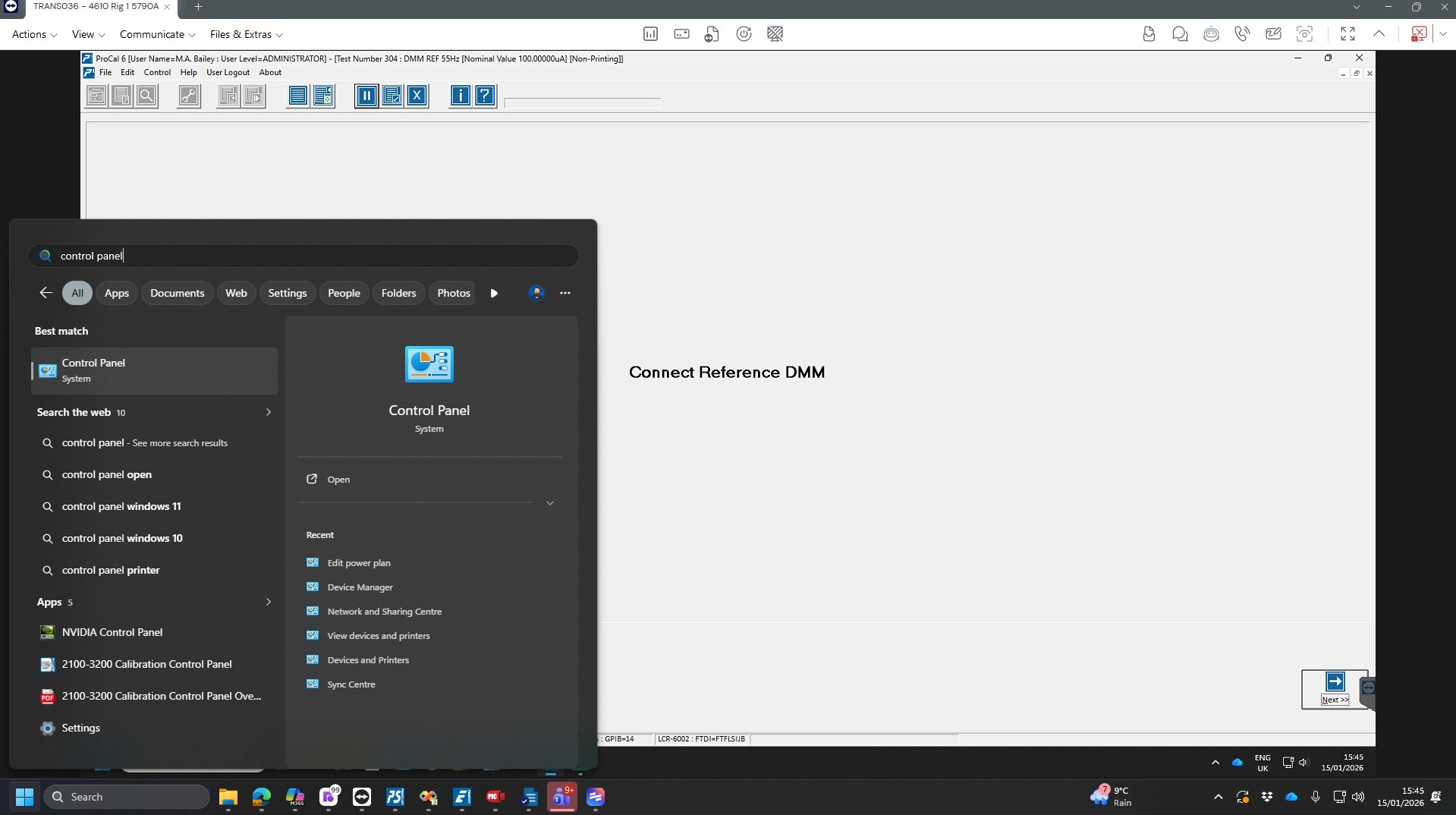
3. Click "Search Box"
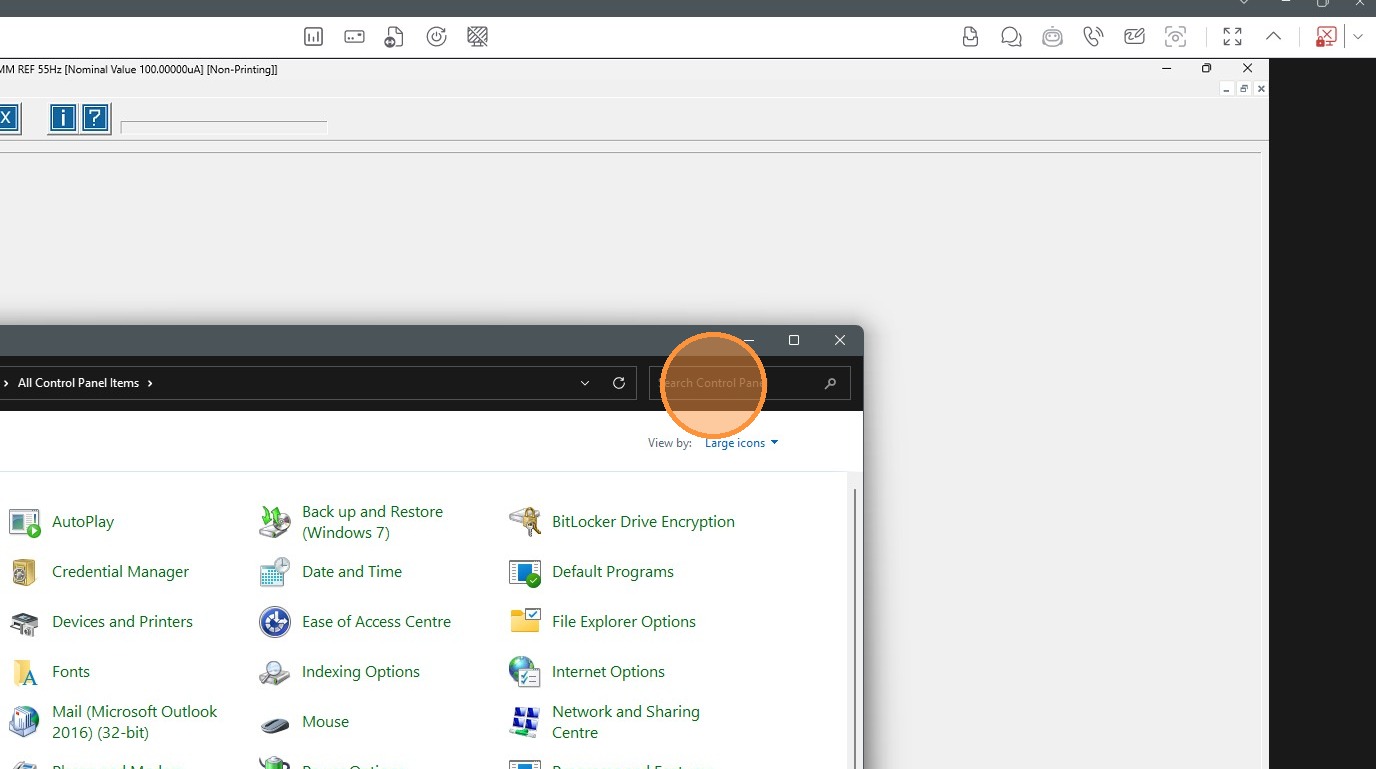
4. Type in 'power settings'
5. Click "Change power-saving settings"

6. Click "Change plan settings' for the selected plan
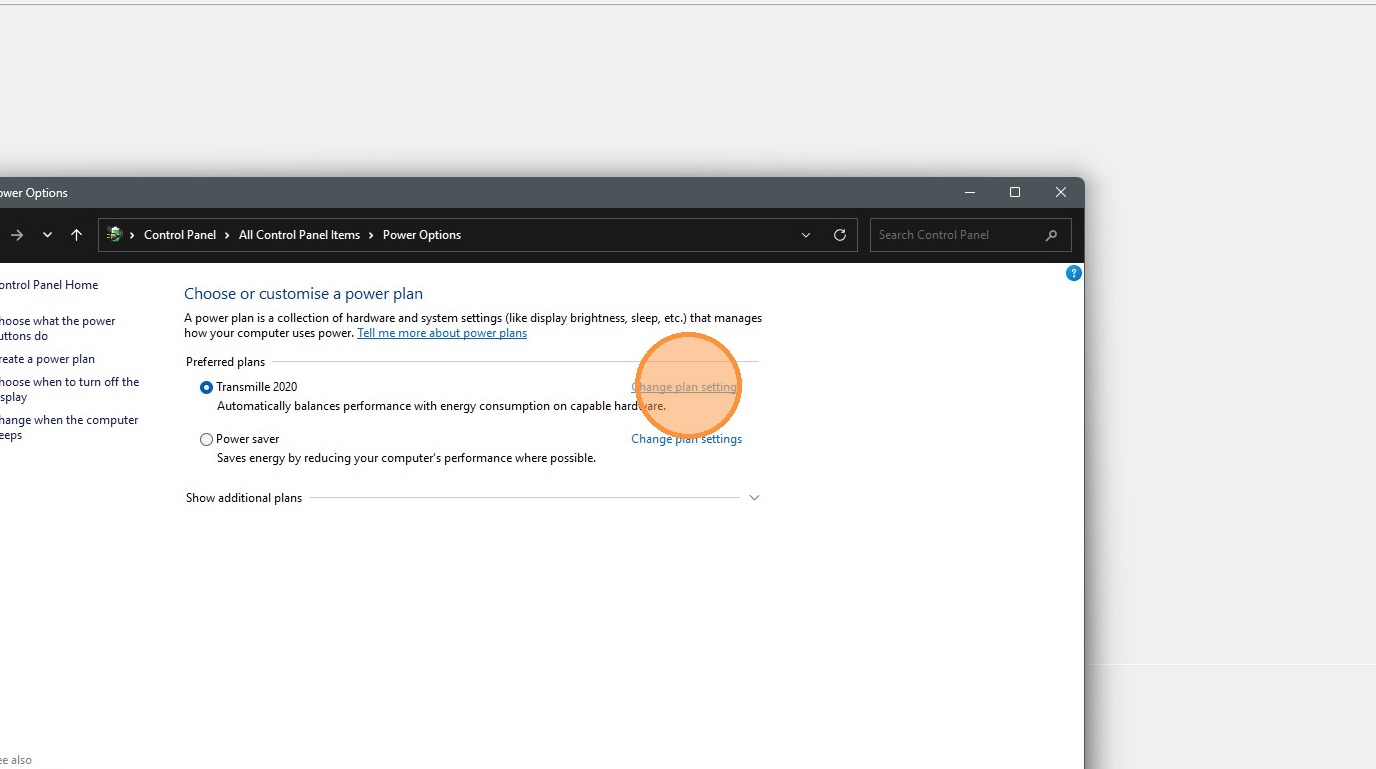
7. Click "Change advanced power settings"
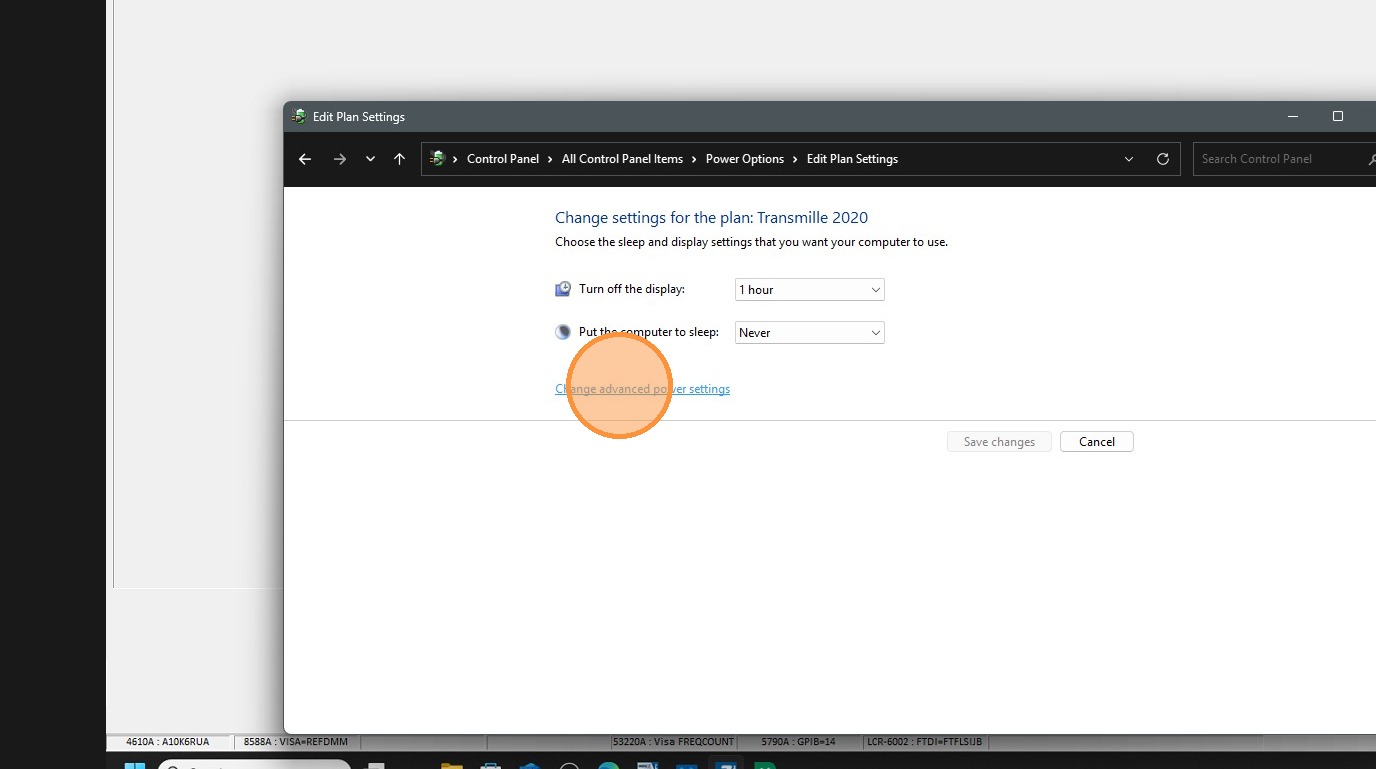
8. Scroll the bar down
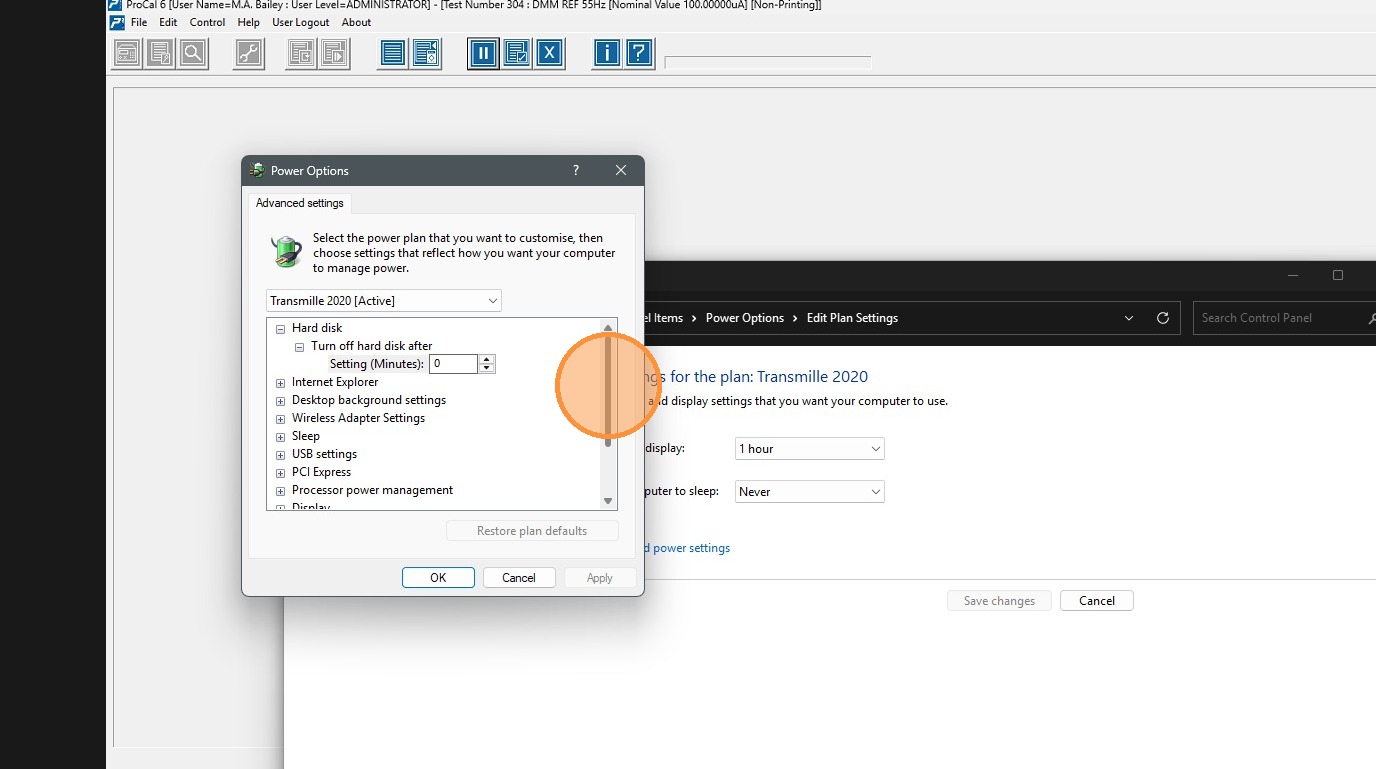
9. Click "USB settings"
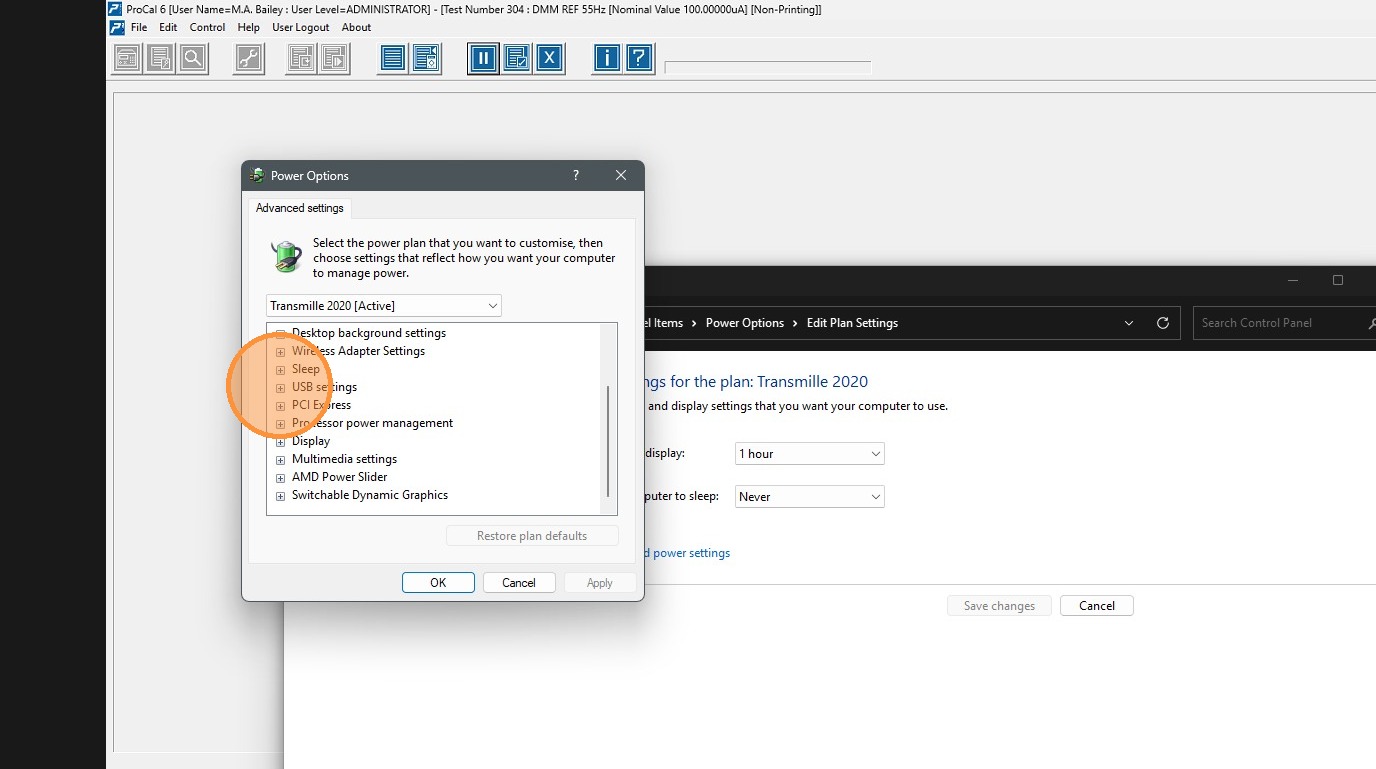
10. Click "USB selective suspend setting"
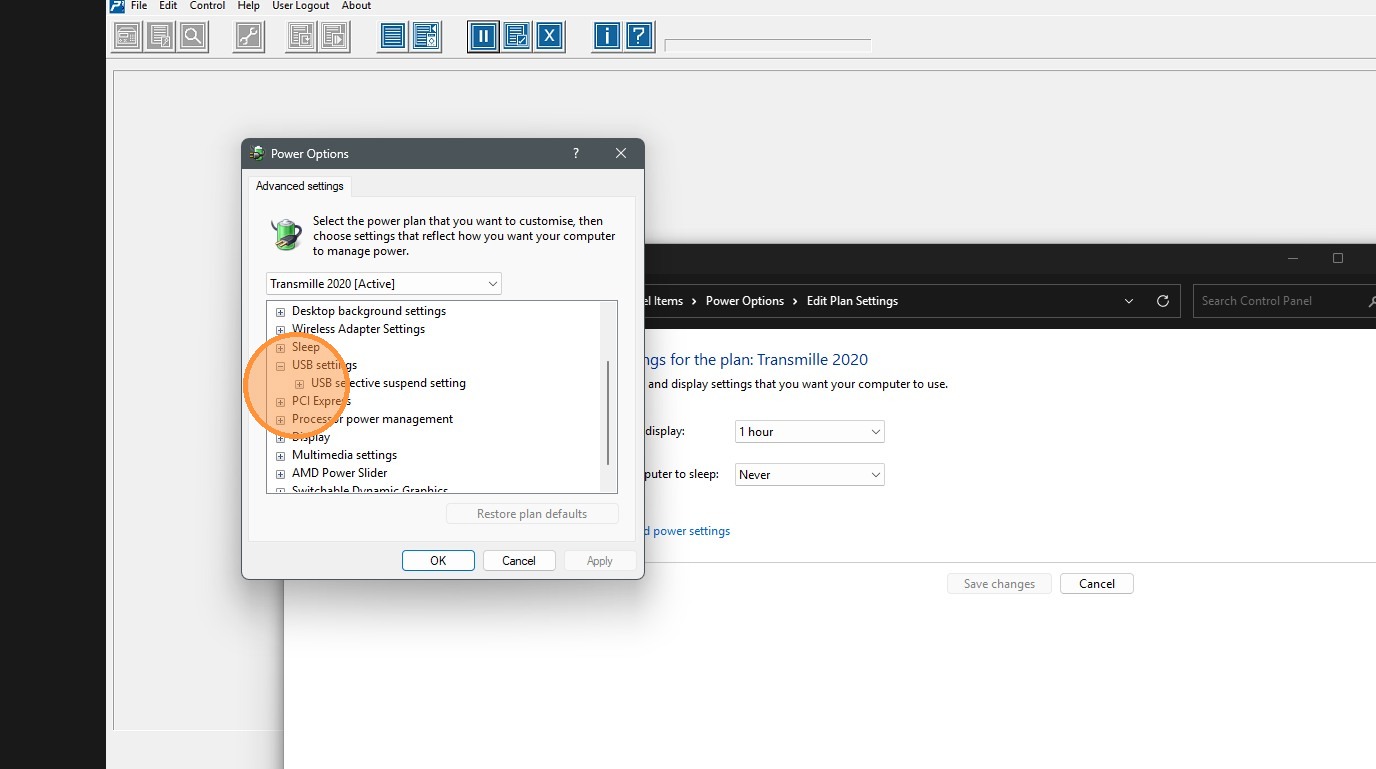
11. Click "Setting: Disabled"
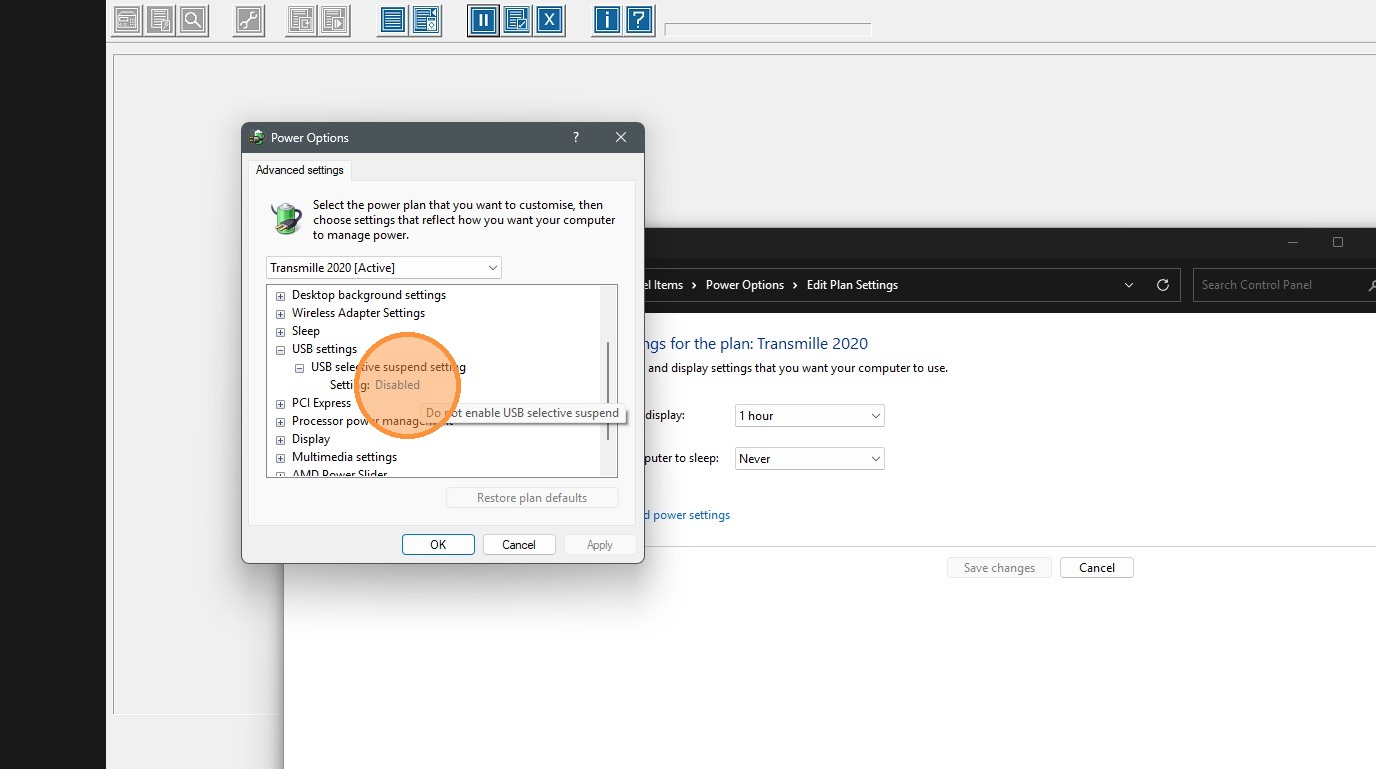
12. Click "Setting: Disabled"
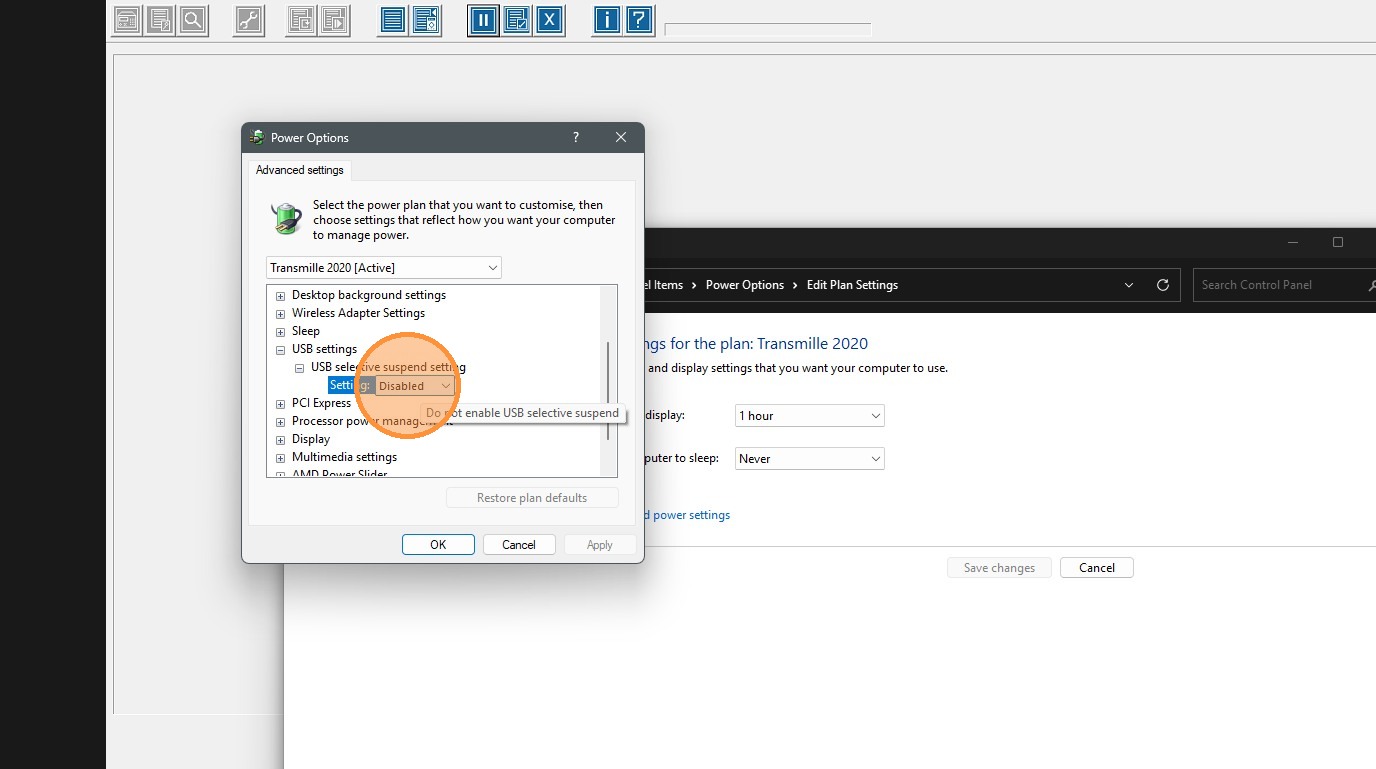
13. Click "Disabled"
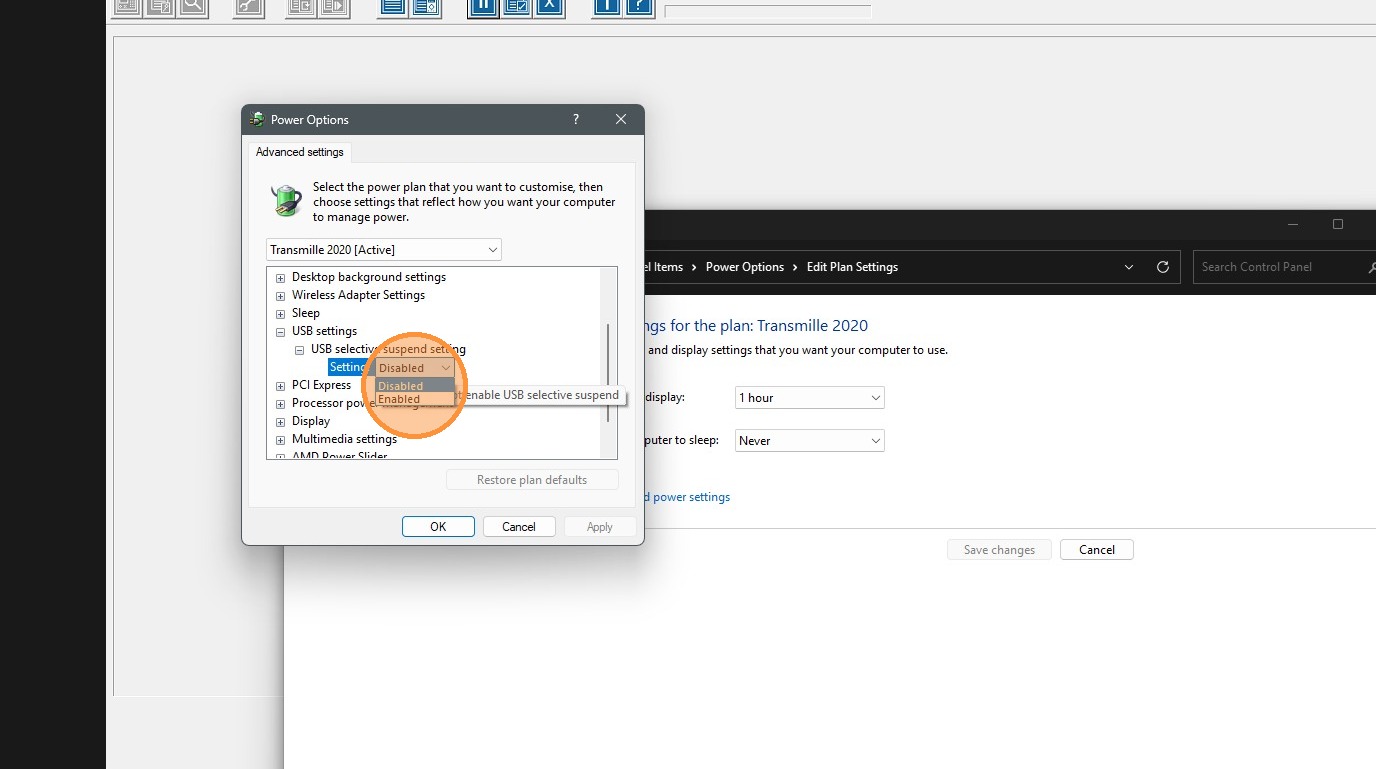
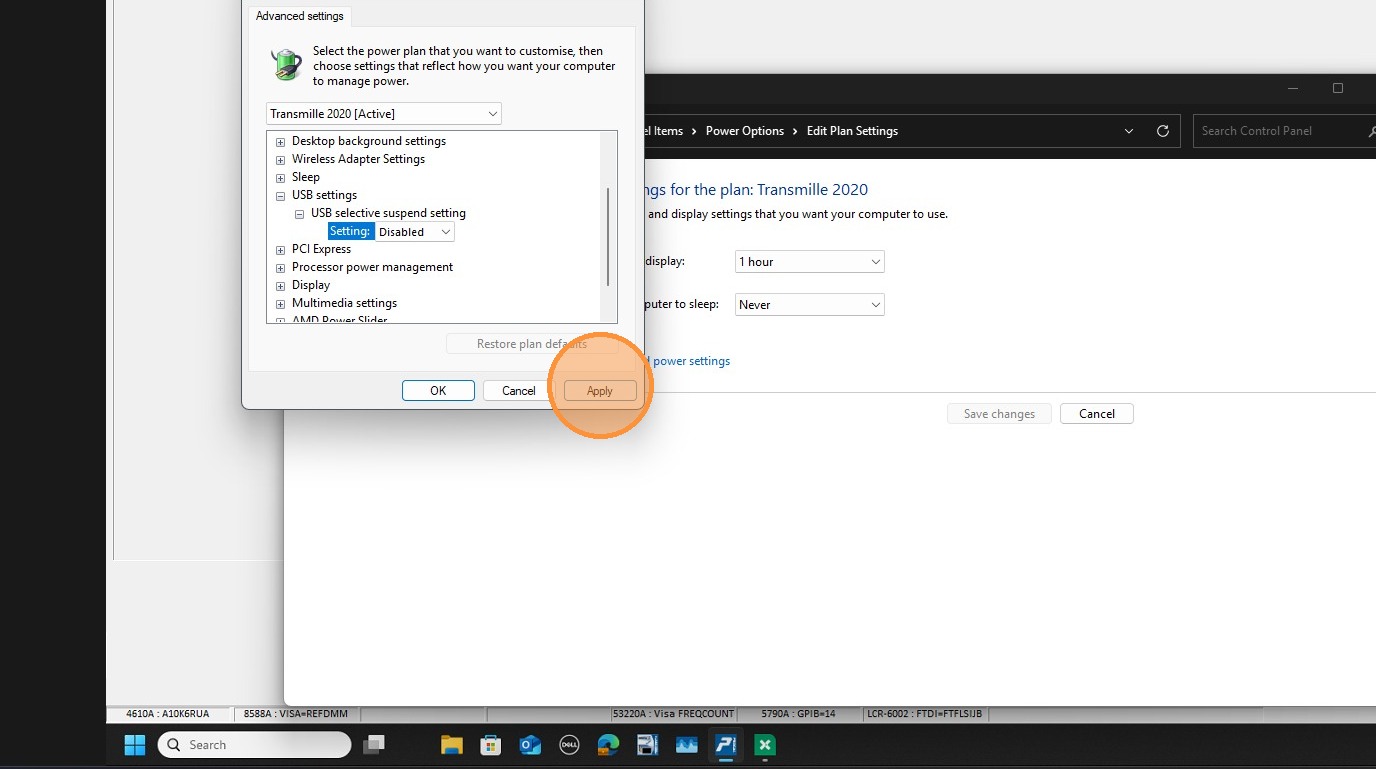
14. Click "Apply"
15. Click "PCI Express"
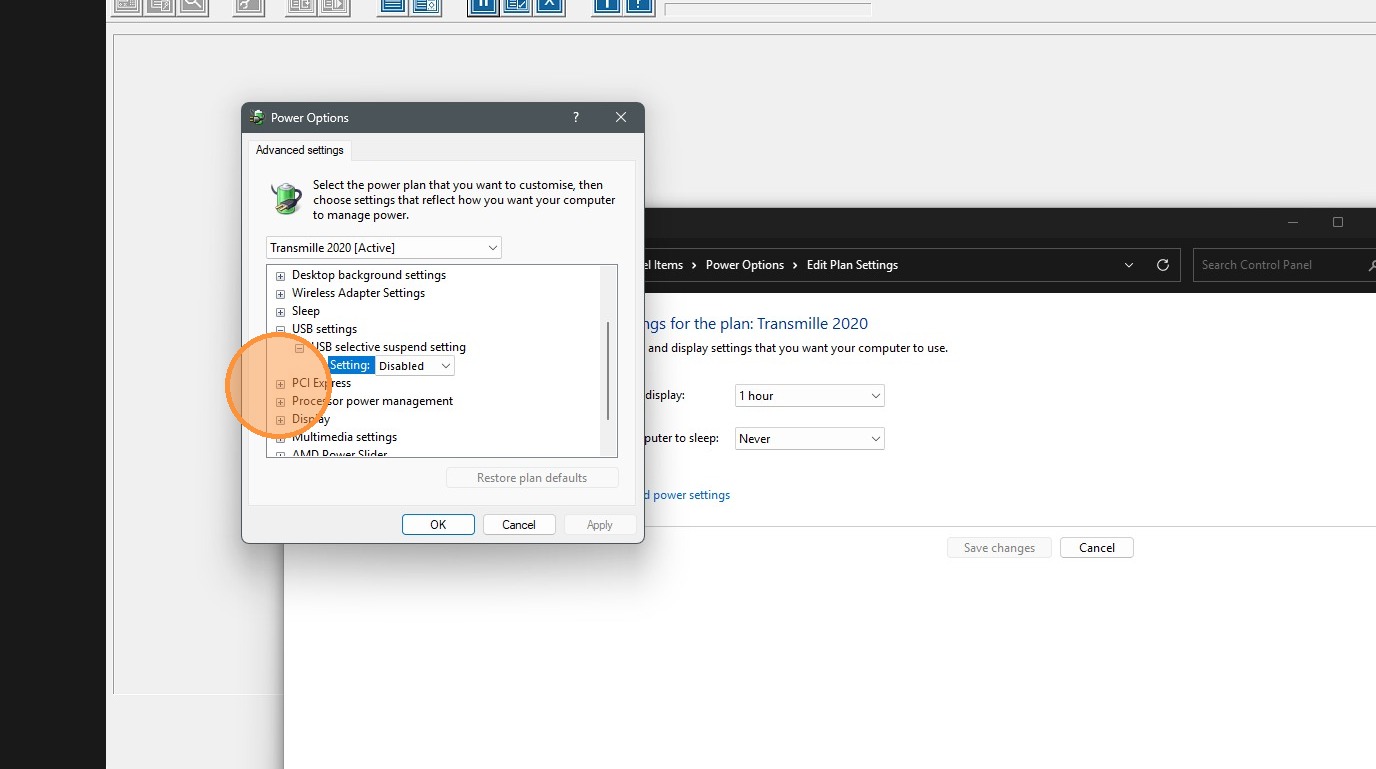
16. Click "Link State Power Management"
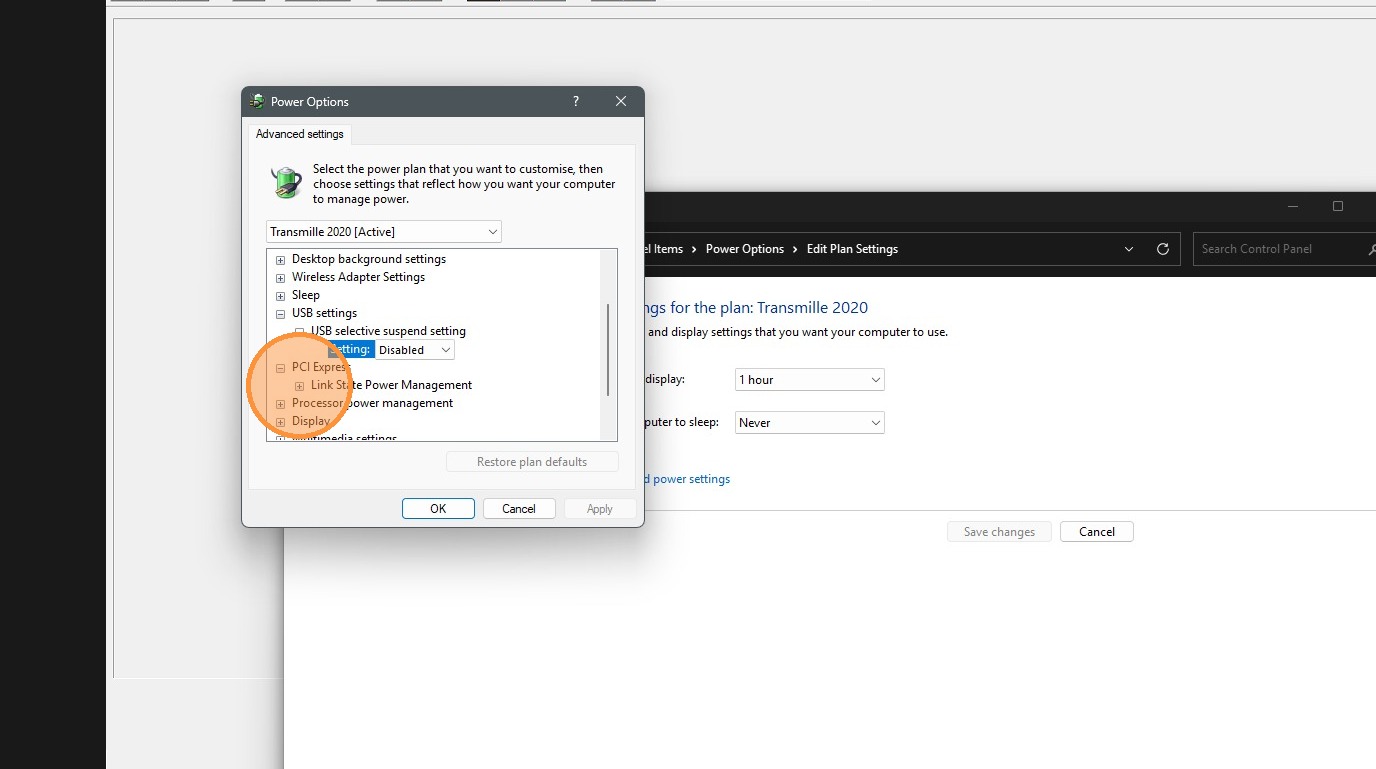
17. Click "Setting: Off"
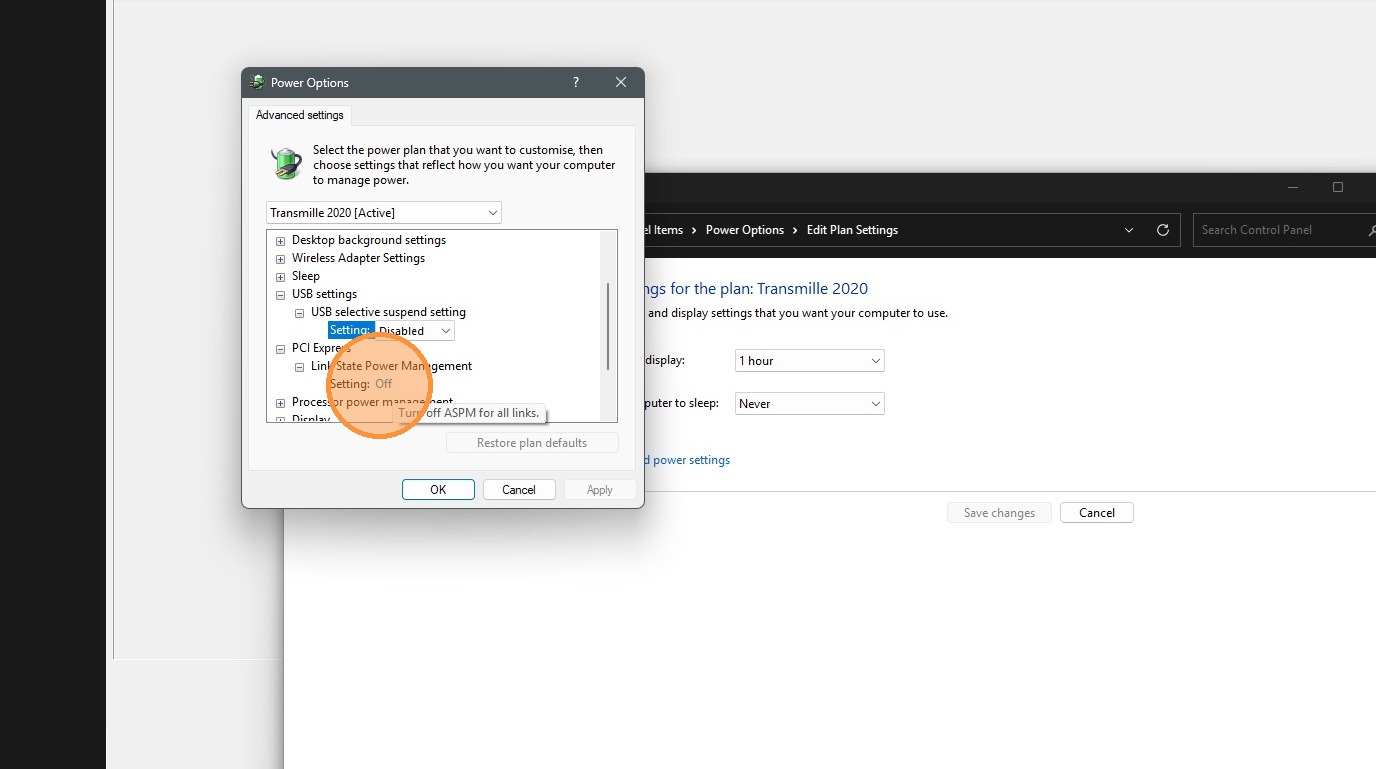
18. Click "Setting: Off"
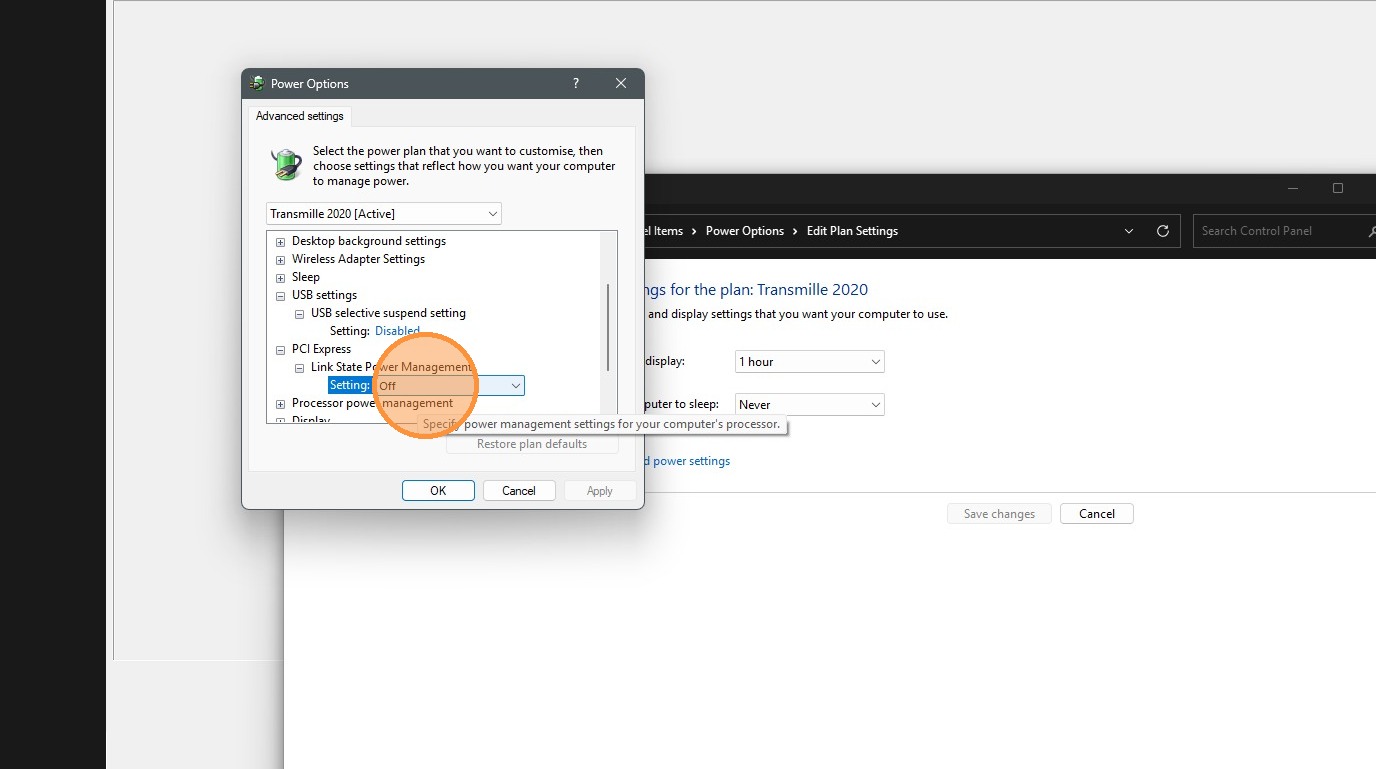
19. Click "Off"
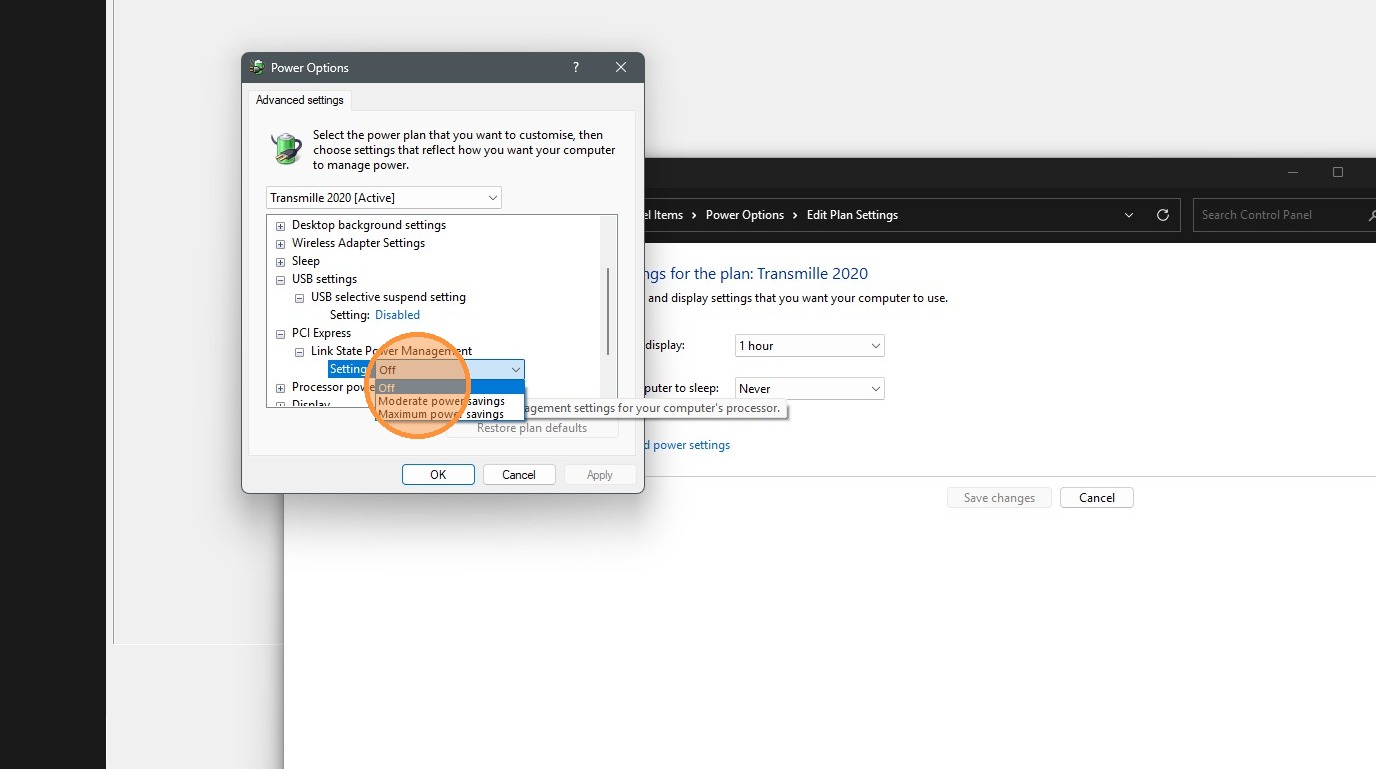
20. Click "Apply"
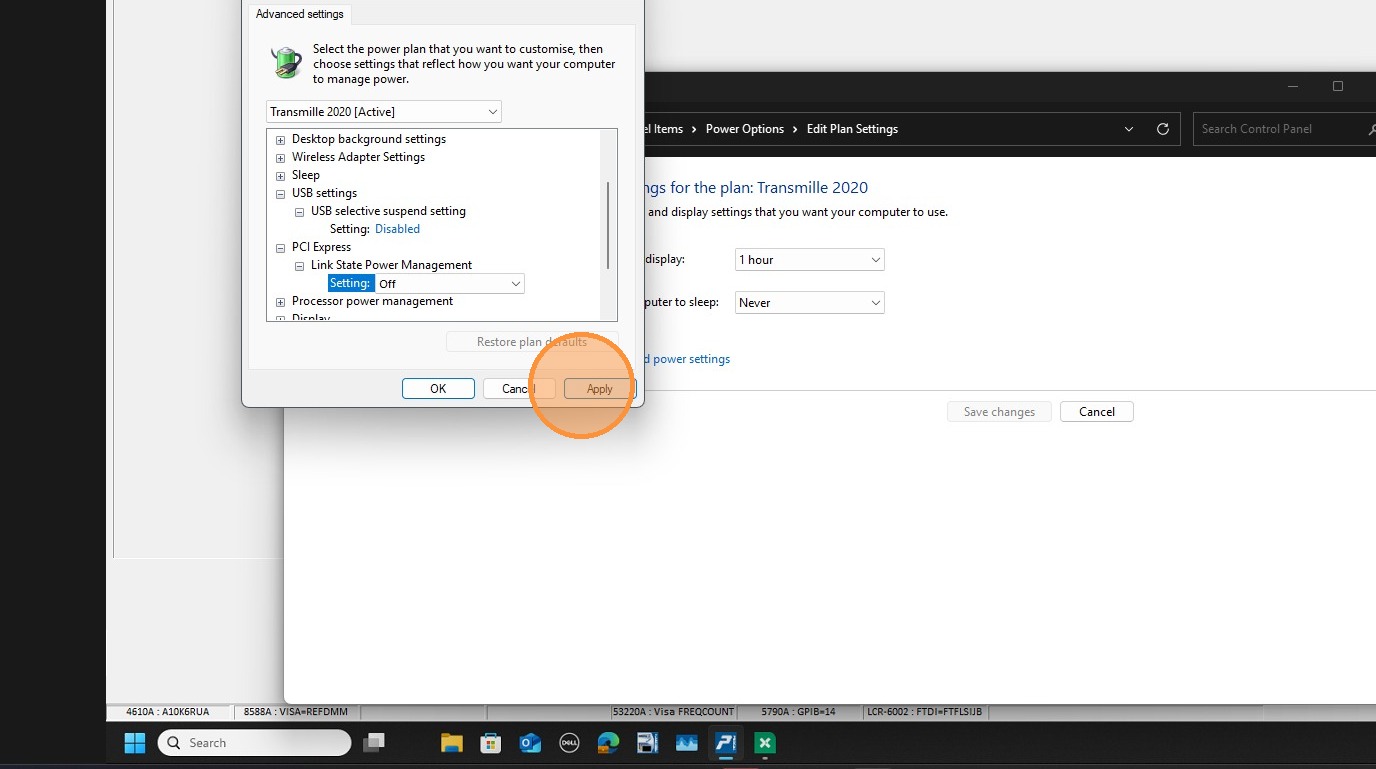
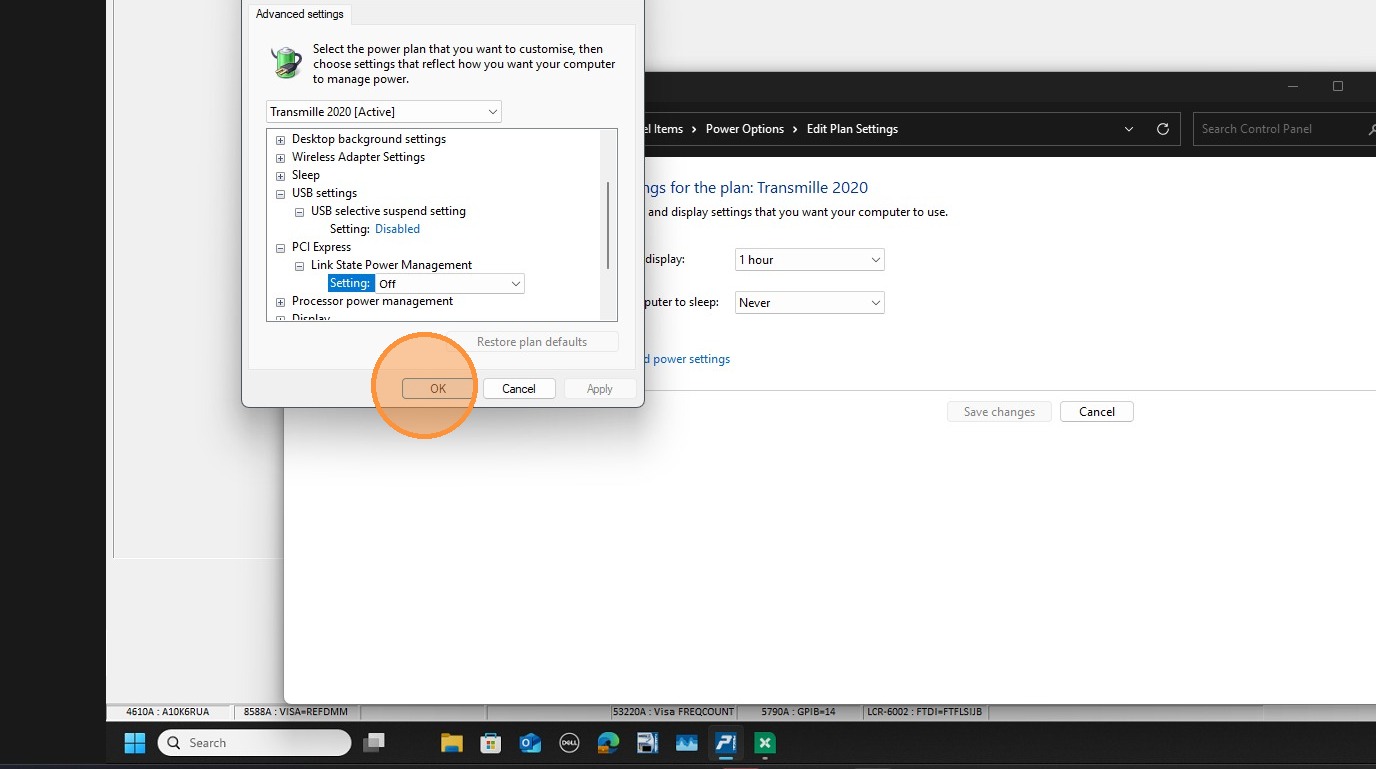
21. Click "OK"
Made with Scribe
Was this article helpful?
That’s Great!
Thank you for your feedback
Sorry! We couldn't be helpful
Thank you for your feedback
Feedback sent
We appreciate your effort and will try to fix the article